

Managing Your College Student Account Password
All Confederation College users can manage their account password using the MyCampus Portal application.
The MyCampus Portal is a web-based application that is accessible to all users using an Internet connected computer. In addition to containing College news, links to popular College software applications and more, the MyCampus Portal contains a College account Password Management Utility. Using this feature, users can change their College account password, as well as setup an account password recovery to be used in case a user forgets their password and needs to have it reset by the system.
Accessing the MyCampus Portal and Password Reset Utility:
- On an Internet-connected computer, go to the College’s main web site at: https://www.confederationcollege.ca
At the top menu bar of the College website main page, click the link ‘My Campus Portal’.
Image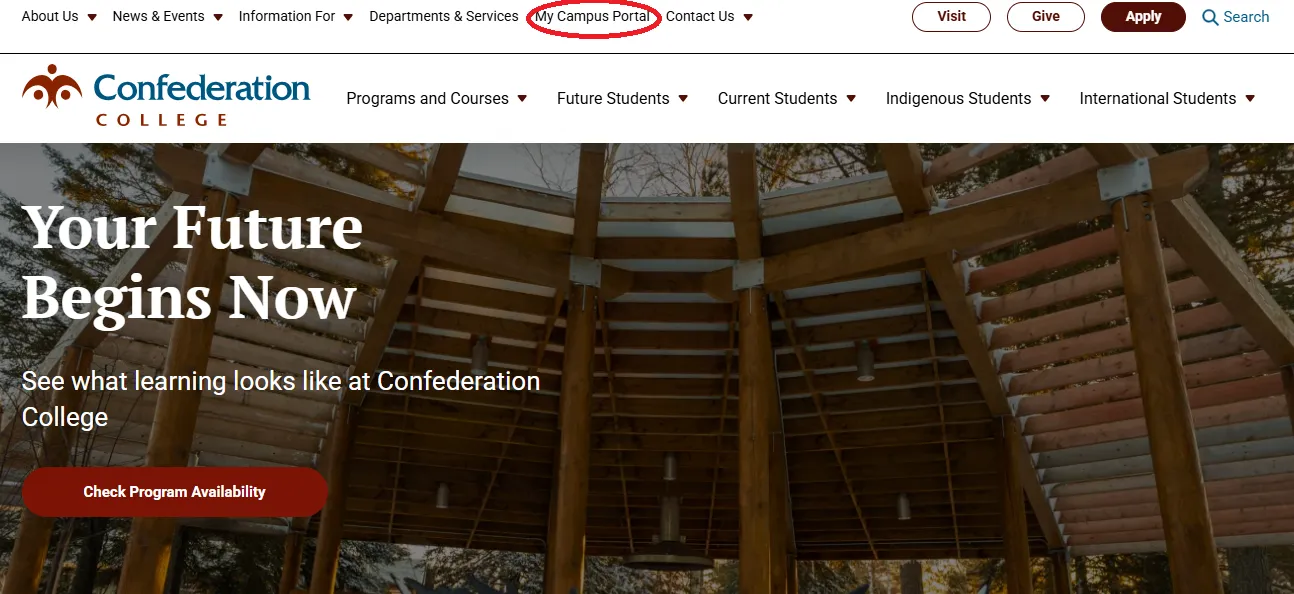
At the MyCampus Portal login page, please enter your College username and password and then click the ‘LOGIN’ button.
Image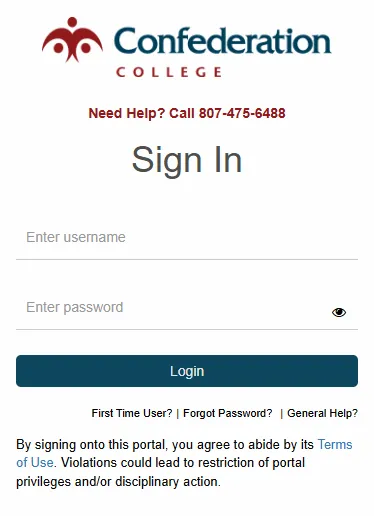
- The first time you login to the MyCampus Portal, the system may ask you to re-enter your password in order to allow you to setup an E-mail and/or Phone (password) Recovery method.
Once you’ve successfully re-entered your account password, you will be prompted to enter in an E-mail and/or Phone (password) Recovery (see below). You can enter both an E-mail, as well as a Phone Recovery but you must, at minimum, enter one of these.
For the e-mail recovery, you must use a non-College e-mail address.
Image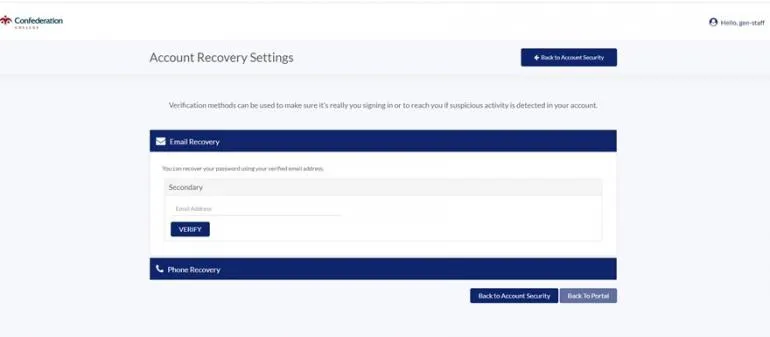
- Once you’ve entered in an E-mail and/or a Phone (password) Recovery, you will be asked to verify that e-mail address/phone number. Click the ‘Verify’ button to receive an e-mail/phone text message with a verification code. Enter the verification code into the provided space to have the system accept your e-mail/phone Recovery information.
- Once this is complete, click the ‘< Go to My Apps’ button. You will then be brought into the MyCampus Portal home screen.
- By completing the above steps, if you ever forget your College account password, you can use the MyCampus Portal password recovery feature to help reset your password (see section below).
- If in the future you ever wish to change your College account password recovery e-mail or phone number, login to the MyCampus Portal and once logged in, on the left side menu click on ‘Password Management’ and then ‘Account Recovery’ links to be brought to the ‘Account Recovery Settings’ page.Follow the steps as outlined above to update your E-mail and/or Phone password recovery.
Resetting a Forgotten College Account Password:
If you ever forget your College account password, follow the steps below to do a self-service password reset with the MyCampus Portal:
- As described in the section above, go to the College’s main website and click the link ‘My Campus Portal’.
- At the MyCampus Portal login page, click the ‘Forgot Password?’ link at the bottom.
- You will be prompted to enter you College account username – please do so and then click the ‘SUBMIT’ button.
- You will then be prompted to select a verification method (i.e. E-mail and/or Phone Recovery).
- You will then receive an e-mail or phone text verification code. Enter the verification code in the space provided and click the ‘SUBMIT’ button.
If successful, you will now be prompted to create a new password (see next section for password requirement guidelines). Enter a new password in twice and click the ‘SUBMIT’ button.
Image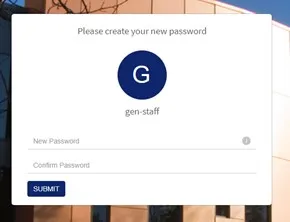
- Done! You will now be re-directed back to the MyCampus Portal login screen. Enter in your username and new password to proceed.
Using the MyCampus Portal to Change Your College Account Password:
If you ever wish/need to change your College account password, you may do so in the MyCampus Portal by following the steps below:
- Login to the MyCampus Portal as described in the above section.
Once logged into the MyCampus Portal, on the left-hand portion of the screen you will see near the middle of the list a link to ‘Password Management’.
Image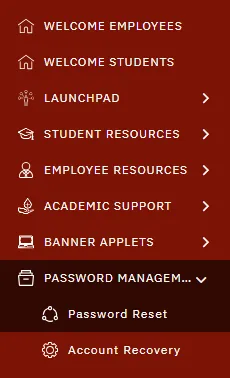
- Click on ‘PASSWORD MANAGEMENT’ and then ‘Password Reset’.
On the next screen, you will be prompted to create a new password by entering your current password, and then your new password twice.
Image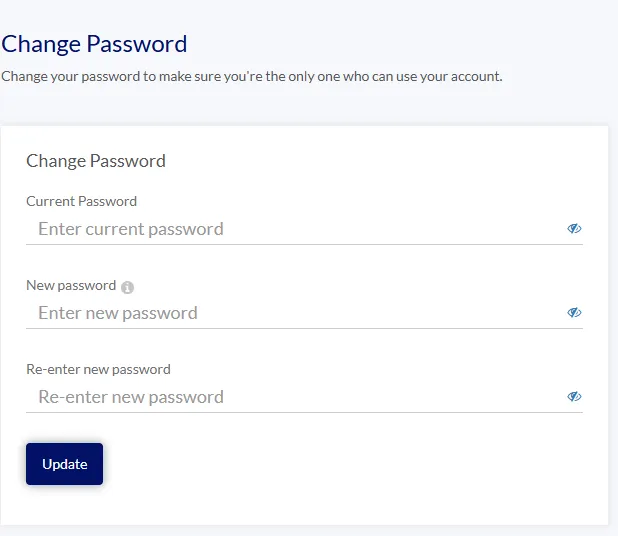
- When changing your College account password, please ensure your password meets the following security requirements:
- Be a minimum of 15 characters in length (try using a 'passphrase' for a password that is easy for you to remember)
- Cannot contain a combination of characters resembling your name or account username
- Cannot have the words 'Confederation' or 'College' in it
- Note: Passwords entered that do not meet all the above security standards will be rejected by the system.
- When changing your College account password, please ensure your password meets the following security requirements:
- Click the ‘UPDATE’ button to finish password change.
- You have successfully changed your password.
Click the ‘< Go to My Apps’ button to go back to the MyCampus Portal home screen.