
Microsoft 365
Introduction
This page contains several sections.
What is Microsoft 365?
Microsoft Office 365 (now commonly referred to as Microsoft 365) is a cloud-based productivity platform provided by Microsoft. It includes a suite of applications and services used for email, document creation, collaboration, communication, and secure data storage.
At the College, Microsoft 365 allows faculty, staff, and students to create, edit, store, and share files from virtually anywhere using a computer, tablet, or mobile device. Because the service is cloud-based, users always have access to the most current versions of Microsoft’s tools without needing to manually install software.
Microsoft 365 includes familiar desktop and web applications such as Outlook (email and calendars), Word, Excel, PowerPoint, OneNote, as well as collaboration tools like Microsoft Teams and OneDrive for file storage and sharing. Access is provided through your College-issued account and is protected by Microsoft’s enterprise-grade security and compliance features.
As part of the College’s campus licensing with Microsoft, students and employees may also receive free desktop licensing for the Microsoft 365 desktop applications (including Word, Excel, PowerPoint, Outlook, OneNote, as well as Access and Publisher (Windows only) to use on their personal devices. See below for more information on how to obtain the Microsoft 365 desktop apps for personal use.
Overall, Microsoft 365 supports teaching, learning, and administrative work by enabling secure communication, real-time collaboration, and reliable access to documents and services across the institution.
How Do I Access Microsoft 365?
1. You can access Microsoft 365 by using any Internet connected computer with a web-browser and logging into the College’s MyCampus Portal application by visiting http://www.confederationcollege.ca (this is the College’s main website).
2. At the top of the College website main page, click the link My Campus Portal.
3. At the MyCampus Portal login page, please enter your College username and password and then click the ‘Login’ button.
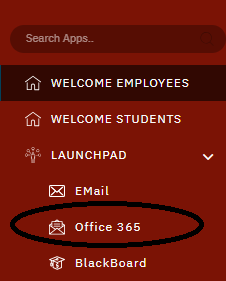
4. Once you are logged into the MyCampus Portal, on the left-hand side of the page under the LaunchPad section you will see the ‘Office 365’ link. Click on this icon to be automatically logged into Office 365.
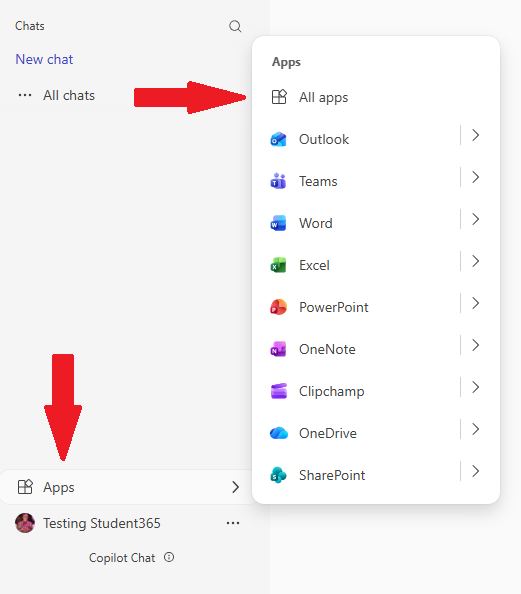
5. Once loaded, you will then see the main page of Microsoft 365. To access the Microsoft 365 aps, click on the ‘Apps’ link at the bottom left of your screen, then click on ‘All Apps’ on the pop-up menu.
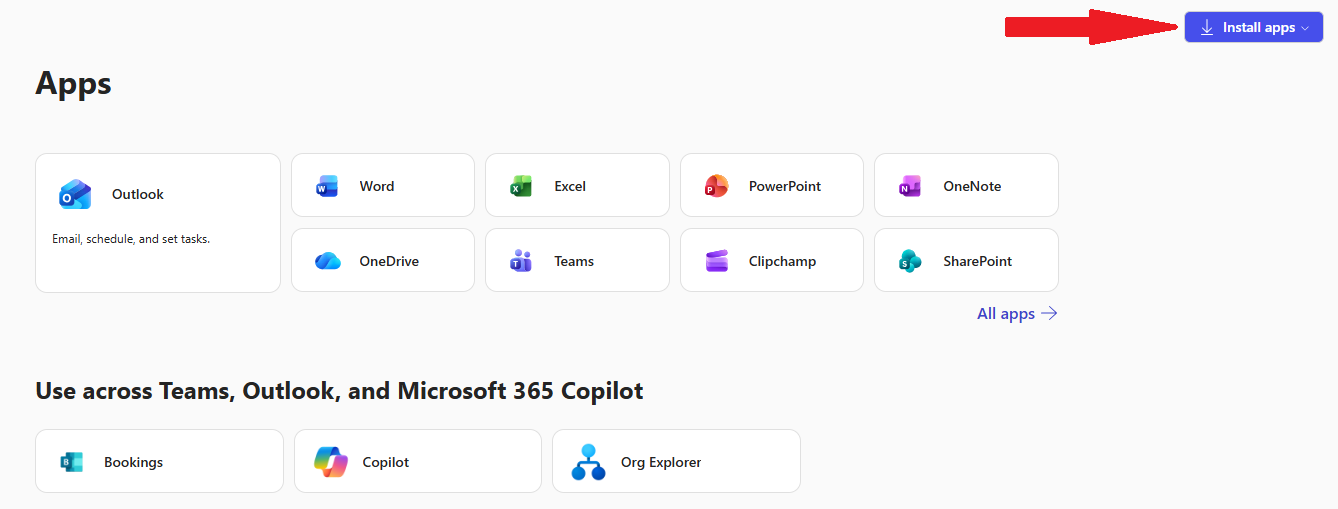
6. In the Microsoft 365 Apps screen you will see all the apps available to you.
Key Features and Apps
- Outlook Mail - You can access your Confederation College email within Microsoft 365. Your email account will be an essential line of communication with your instructors and peers throughout your studies at Confederation College. Make sure you check it often!
- Instructions for Adding Your College Microsoft 365 E-mail to Your iOS or Android Device:

- OneDrive - Microsoft OneDrive is a cloud storage solution that allows staff and students online storage space. Users are able to store their files in OneDrive and access these files from any device with an Internet connection.
- Microsoft Office Web Applications - All of the classic Microsoft Office applications are available within your web browser. Click the application you would like to launch. These applications will work on most devices and do not require program installations.

- Downloadable Microsoft Office365 - You can download and install the Microsoft Office 365 desktop applications on a personal computing device by clicking on the ‘Install apps’ button.