

How to request a website update
Use this process for updates to the public Confederation College website: www.confederationcollege.ca.
Note: For Portal items like internal announcements, staff news, and internal notices, use the Portal news/feed process.
How to submit a request
Step 1 — Create a SolarWinds ticket (Incident)
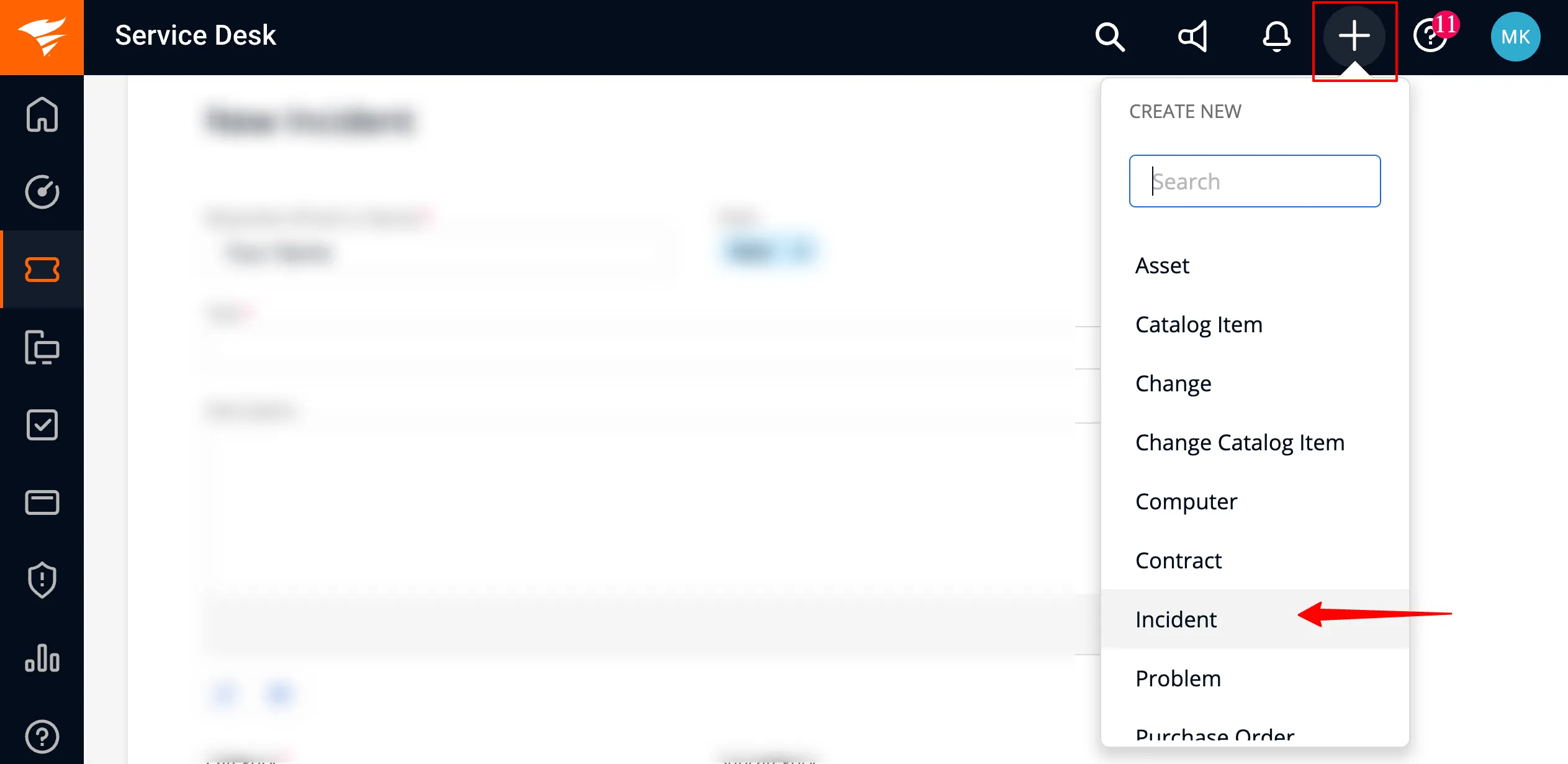
- Go to SolarWinds: https://itsupport.confederationcollege.ca/
- Create an Incident
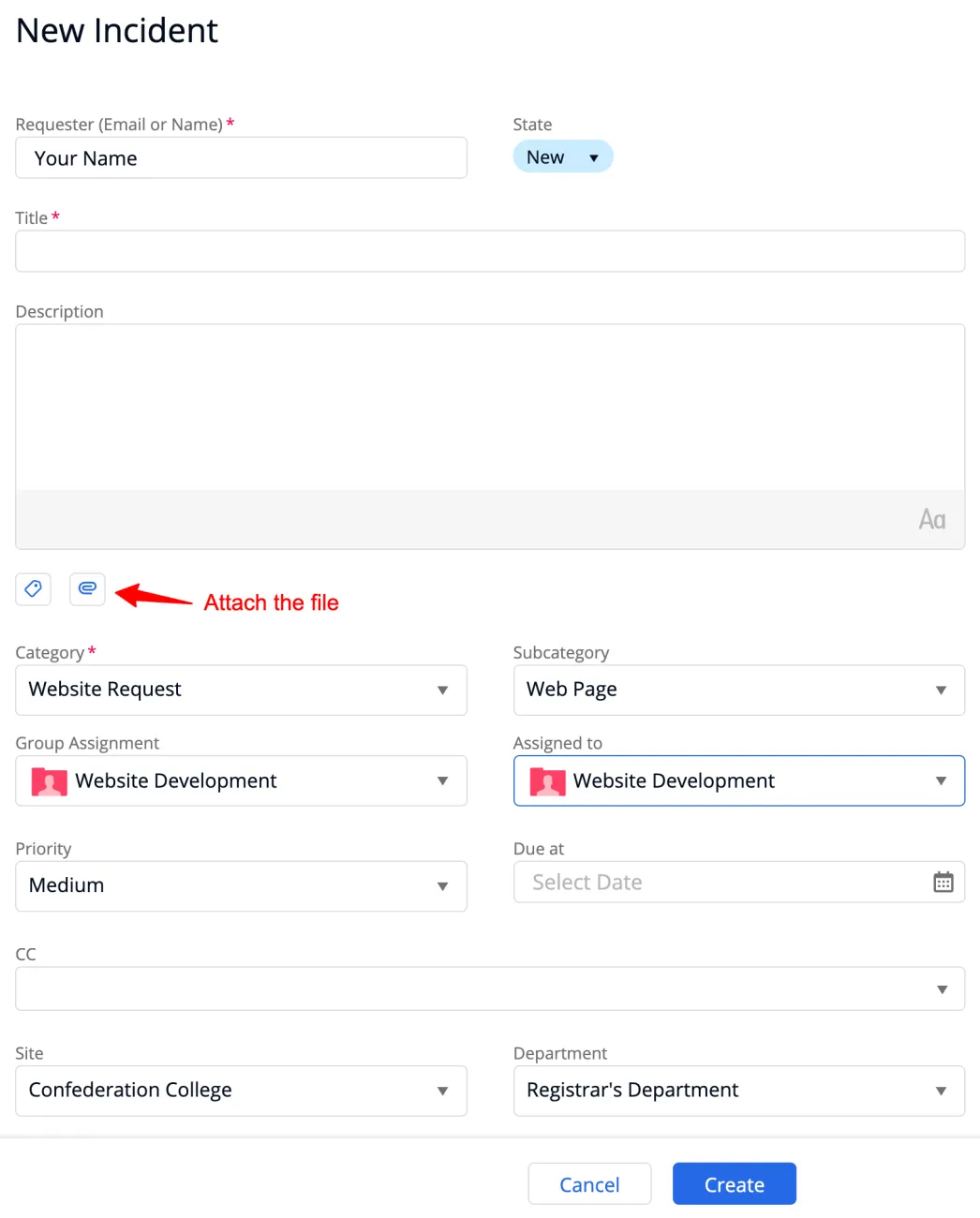
- Complete the ticket fields:
- Title (required): use a short summary (examples below)
- Description: include the details in Step 3
- Attachments: use the clip icon under the Description to attach PDFs/images/files
Set the routing fields:
- Category (required): Website update
- Subcategory: Academic Program / News/Event Article / Web Page / Web Site
- Group Assignment: Website Development
- Assigned to: Website Development
- Priority: None / Low / Medium / High / Critical
- Site: Confederation College
- Department: (usually auto-selected)
Due at (optional): add only when the change is time-sensitive, and include the reason in the Description.
Step 2 — Choose the request type (use in your Title)
Start your ticket title with one label:
- Content update (text changes, new content, removals)
- File update (PDFs, forms, downloads)
- Program information (program pages, coordinator, faculty list, person profiles)
- Page improvement (layout/design updates, page restructuring)
- Fix a problem (broken link, typo, missing page, formatting issue, accessibility concern)
- Redirect / URL change (old link → new link)
- Access / permissions (add/remove editor access)
Title examples
Content update – Residence – update application deadlineFile update – Replace PDF – Tuition refund formFix a problem – Broken link – Financial Aid pageProgram information – Coordinator change – Business Administration
Step 3 — Include the details we need (this prevents delays)
Copy/paste this checklist into your ticket and fill it in:
- Page URL(s):
- What should change: (paste the exact new text, not just a description)
- What should stay the same:
- Files (if needed): attach file(s) and confirm if it replaces an existing file
- Images (if needed): attach image(s) + provide alt text
- Deadline (only if time-sensitive): date + reason (intake, campaign, event, compliance)
- Content owner/approver: name and department
- For layout/design requests: include a screenshot and mark up what should move/change
Step 4 — What happens next
- Many routine updates are completed during the business day when all required details are provided.
- Larger changes (layout improvements, new page structures, complex updates) may take longer and may require coordination across teams.
- You can follow progress in SolarWinds and add details or files to the same ticket without restarting the request.
Program information (Banner-fed content)
Some program information on the website is imported from Banner — course lists and fee information.
The Website Development team can’t edit course lists or fees directly on the website. If a course list or fee needs to change, it must be updated in Banner first by the appropriate team. After Banner is updated, the website refreshes automatically during the next scheduled synchronization (typically the following morning).
Submit a SolarWinds ticket for course/fee items when:
- you want us to confirm the website has updated after a Banner change, or
- the sync appears complete but the website is still showing old/incorrect information.
When submitting a ticket related to course lists or fees, include:
- Program full name + program page URL (avoid acronyms only)
- What the website shows now vs. what you expect to see
- When the Banner update was completed (date/time, if known)
- Intake/year/term (if relevant)
- Any deadline or time sensitivity (and why)
Public website content focus
The public website is designed for future students and recruitment audiences first. Items meant for internal communication (internal announcements, staff-only updates, internal celebrations/notices) belong on the Portal rather than the public site.
If you’re unsure where something belongs, submit a ticket with the draft text and the intended audience, and we’ll route it appropriately.
Quick checks for department/program pages (page hygiene)
Before submitting a ticket—or when reviewing your area—these are the most common issues to watch for:
- Broken links (especially to PDFs and old pages)
- Outdated dates (events, deadlines, intake references)
- Download files that are outdated, duplicated, or named unclear (e.g., “final_v3.pdf”)
- Headings used correctly (no skipped levels; avoid styling text to “look like” a heading)
- Accessibility basics: descriptive link text, meaningful page titles, alt text for images
- Program pages: coordinator/faculty lists current; contact info accurate; no manual edits to Banner-fed sections
-
Please use SolarWinds. Tickets are visible to the full support group, easier to track, and less likely to be missed than direct messages.
-
Submit a ticket and include a deadline and reason (for example: incorrect program-critical information, accessibility/compliance issue, campaign launch date).
-
Attach the updated file to the ticket, include the page URL, and confirm whether it replaces an existing file. Use a clear file name that matches what students should see.
-
Submit a ticket with the program URL and the person’s full name, title, email, and effective date. If adding someone new, include the details listed below.
-
Include full name, title, department/program association, email, phone (if applicable), office location (if applicable), bio (short), photo (if available), and any required approvals.
-
Use the public contact option on the website. Include the page link and a short description of the issue.
-
Course lists and fee information are Banner-fed and aren’t edited directly on the website. If something needs to change, it must be updated in Banner through the regular process for your area. After that, the website updates during the next scheduled synchronization (typically the following morning).
If Banner has already been updated and the website still shows the old information, submit a SolarWinds ticket with the program full name + URL, what the website shows vs. what you expect, and when the Banner change was completed (if known).